Safety notices, engineering drawings, videos, checklists, specifications, and forms often accompany an assembly or service process.
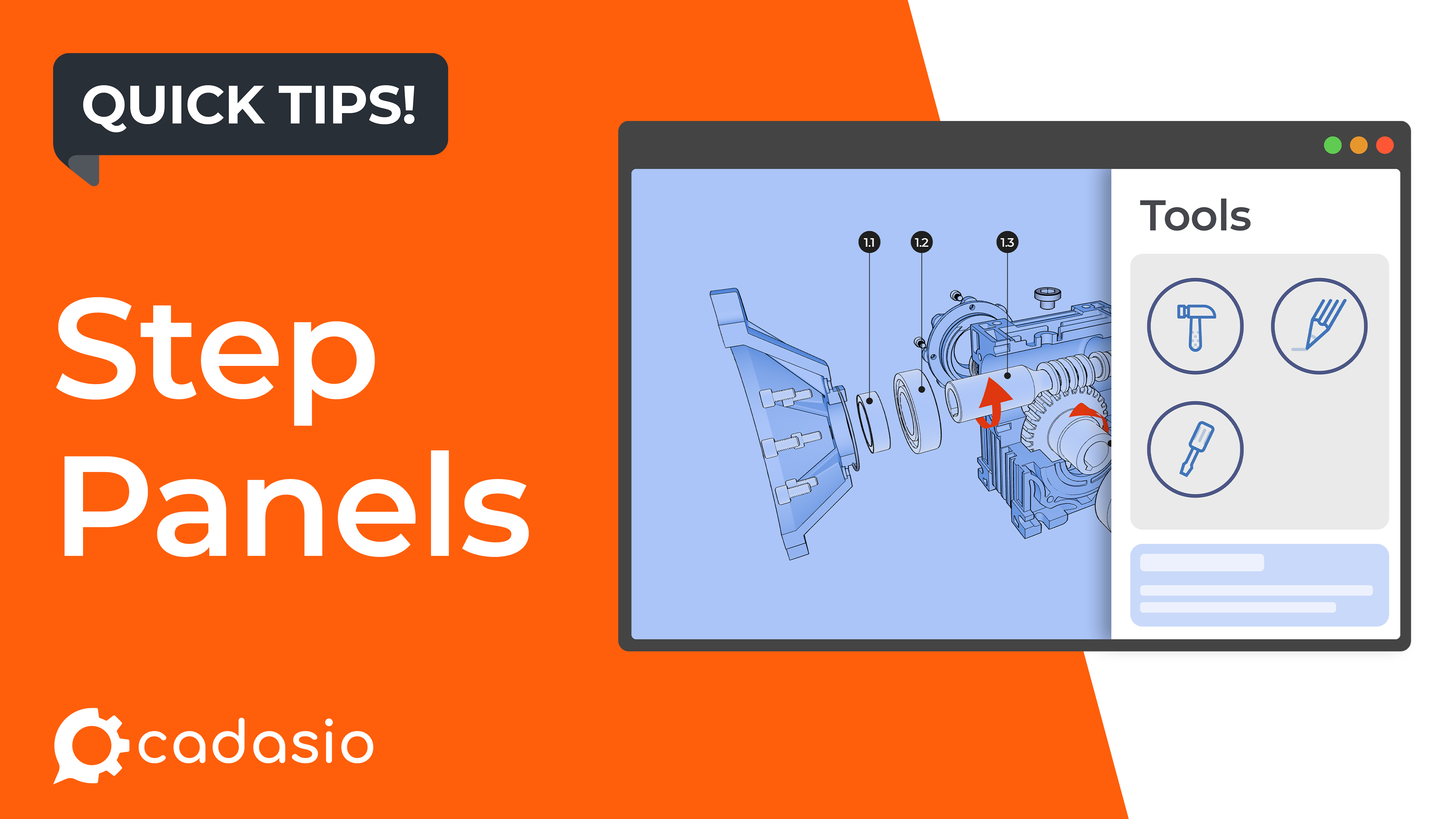
Step Panels provide a simple way to present this information alongside your 3D instructions without cluttering the main view. Because panels are configured individually for each step, you can display the right information exactly when it becomes relevant to the viewer.
This article looks at how Step Panels work and the different types of content they support.
Accessing Step Panels
Within the Cadasio Designer, open the Steps Manager, select Step Settings, and navigate to the Panel tab.
Every step in a presentation has its own panel configuration, allowing each stage of a procedure to display completely different supporting information.
For example, an introductory step might display safety documentation, while a later assembly step could show an engineering drawing or inspection checklist.
Choosing the Panel Position
The first option determines where the panel appears on screen.
Panels can slide in from the left, right, top, or bottom of the viewer, allowing you to choose a layout that best suits your presentation and the available screen space.
For example, a narrow checklist may work well as a panel on the right-hand side, while a large PDF drawing might be easier to view in a panel that opens from the bottom of the screen.
Opening Panels Automatically
Panels can either be opened manually by the viewer or configured to open automatically whenever a step becomes active.
Automatic opening is particularly useful when the information is essential before the viewer continues with the procedure.
Typical examples include:
- Safety warnings
- Required tools or equipment
- Important assembly notes
- Inspection requirements
- Quality control instructions
This helps ensure important information is presented at the appropriate stage of the workflow.
Configuring the Panel Size
You can also define the panel's default size.
Depending on its position, this controls either the width or height of the panel as a percentage of the available screen space.
The default size simply determines how the panel first appears. Viewers remain free to resize the panel while viewing the presentation, making it easy to adapt to different screen sizes and the amount of information being displayed.
Supported Content Types
One of the biggest strengths of Step Panels is the variety of information they can present. Rather than relying on external documents or separate applications, supporting content can be displayed directly alongside the interactive 3D model.
Images and PDFs
Images and PDF documents are selected directly from your asset library.
This makes Step Panels ideal for displaying:
- Engineering drawings
- Assembly diagrams
- Safety documentation
- Wiring schematics
- Product specifications
- Reference photographs
Providing this information within the presentation allows users to quickly access supporting documentation without leaving the current procedure.
Videos
Video panels support both YouTube and Vimeo content.
Simply paste the video URL and it will be embedded directly into the panel.
Videos are particularly useful for demonstrating techniques that are difficult to explain with static images alone, such as cable routing, adhesive application, adjustment procedures, or inspection methods.
Checklists
Checklists provide an effective way to guide users through tasks that require confirmation before moving forward.
Each checklist can contain multiple items, and individual entries can be marked as mandatory before the viewer is allowed to proceed to the next step.
This makes checklists well suited for:
- Inspection procedures
- Maintenance schedules
- Quality assurance
- Commissioning tasks
- Operator training
By encouraging users to actively confirm completed actions, checklists help reduce missed steps during critical procedures.
Text Panels
Sometimes only a short explanation is required.
Text panels provide a straightforward way to display written instructions, warnings, technical notes, or additional guidance without placing unnecessary annotations into the 3D scene.
Because the text remains separate from the model, the presentation stays clean while still making detailed information readily available.
Forms
Step Panels can also host any of your existing Cadasio forms.
This allows information to be collected directly as part of a procedure, whether that's inspection results, operator details, installation records, maintenance reports, or customer feedback.
Combined with Cadasio's Forms feature, Step Panels become a powerful way to build interactive workflows that both present information and collect it from users.
Tables
Tables provide a structured way to present information that doesn't naturally belong within the 3D scene.
Typical examples include:
- Technical specifications
- Torque values
- Parts lists
- Material information
- Reference data
- Inspection limits
Rather than overlaying large amounts of text onto the model, tables keep structured information organised and easy to read.
Keeping Supporting Information Where It's Needed
One of the key advantages of Step Panels is that every step has its own independent configuration.
Instead of presenting all documentation at the beginning of a procedure or requiring users to search through external manuals, relevant information appears only when it is needed.
This creates a cleaner, more focused experience for the viewer while reducing unnecessary navigation between different documents and systems.
Summary
Step Panels are a simple but powerful addition to Cadasio that allow technical authors to combine interactive 3D instructions with rich supporting content.
Whether you're displaying engineering drawings, embedding training videos, presenting inspection checklists, collecting information through forms, or showing technical specifications, Step Panels help keep everything together in a single interactive workflow.
By delivering the right information at the right time, Step Panels make technical documentation easier to follow, easier to maintain, and more effective for the people using it.